CAMPUS & LANDSCAPE PRESENTATIONS
Bring the spaces between buildings to life.
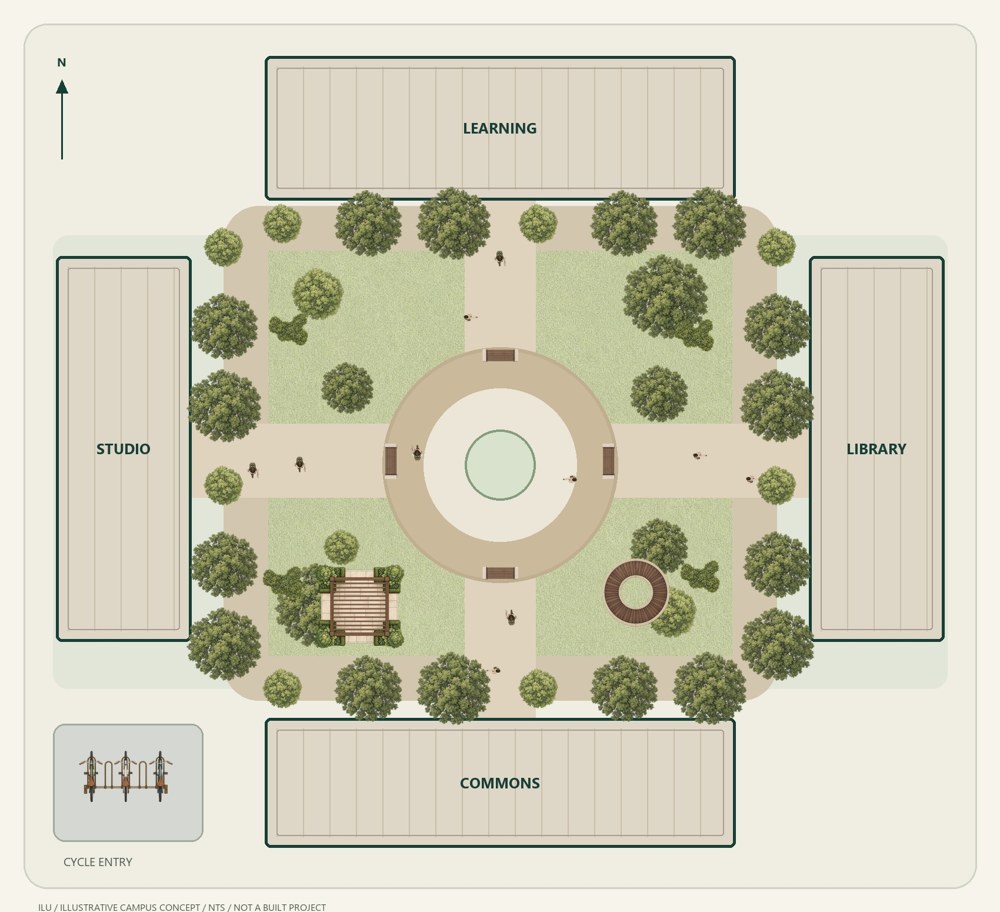
A useful presentation plan helps someone read the route, the planted edge and the place to pause. Here is a practical way to compose those details with ILU’s 2D PNG assets in Illustrator.
Try six free originals ↓No account required. Personal and commercial project use included. Original files may not be resold or redistributed.
1. Start with the drawing’s hierarchy.
Keep your base plan on a separate layer and lock it before placing presentation assets. Establish which building entrances, paths and open spaces need to read first. A clear route and a small number of repeated details are easier to understand than a drawing filled with unrelated objects.
Decide whether you are showing an overall campus or a close courtyard view. At campus scale, tree canopies and groups of seats may read as a composition. At a closer scale, the direction of a bench and the edge of a planting bed become more visible.
Browse campus and circulation details ↗2. Place a PNG and set its scale deliberately.
Download an original PNG, then drag the local file onto your Illustrator canvas or choose File → Place. Keep its proportions when resizing. Use a known dimension in your own drawing as a reference; the image’s pixel dimensions do not assign a real-world scale.
Check that the asset’s viewpoint fits the plan. Keep shadows and visual weight consistent across nearby objects. For a portable handoff, embed placed images or include linked files with the drawing. The Windows companion is an optional separate app for browsing and dragging local downloads into Illustrator.
See the Windows companion ↗3. Compose the planted edge.
Start with a few tree canopies that define an edge or frame an open space. Repeat a limited selection to create a consistent rhythm, then adjust position and rotation where useful. Leave entrances, labels and important paths legible.
These are presentation assets. They do not identify a planting species, prove clearance or replace a planting schedule. Use your project requirements to make those decisions, and use the PNGs to communicate the composition.
Browse landscape planting ↗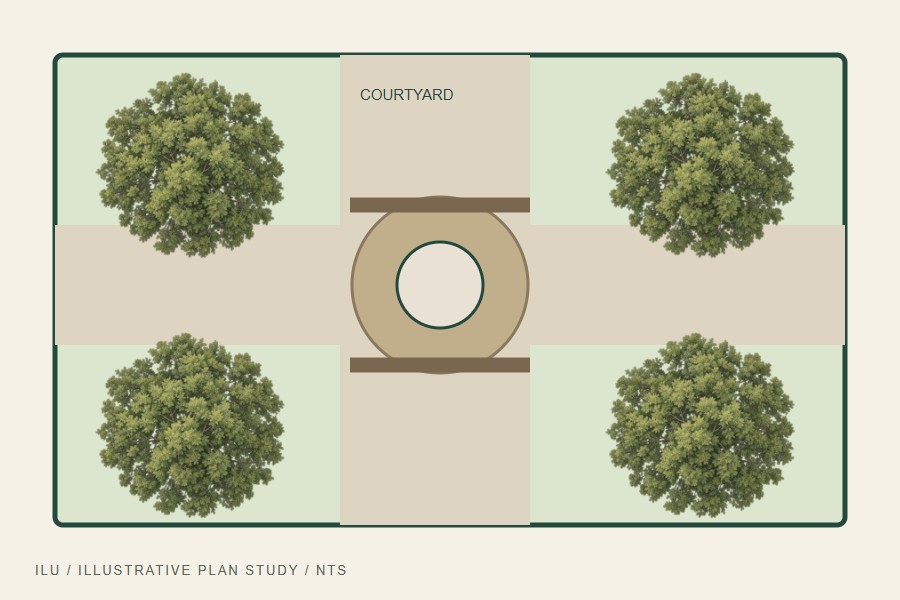
4. Give seating a reason to be there.
Place seating where it helps explain the space: beside a planted edge, facing a garden or near a pause in a circulation route. Keep a consistent size for repeated objects. Use groups to manage a seating cluster and keep it on a layer separate from the base plan.
Zoom out after each group. If a detail competes with building outlines or labels, simplify the group or reduce its visual emphasis. A few deliberate placements can communicate a space more clearly than filling every gap.
5. Use fills to distinguish surfaces.
For a paved court or path, place a PNG fill behind a closed boundary shape. Select the boundary and image and use Object → Clipping Mask → Make. Adjust the image inside the mask until the texture reads at your presentation scale.
The library’s plan fills are raster PNGs, not CAD hatch definitions. Check the individual preview before repeating a texture; do not assume every image is a seamless tile. Two paving fills are included in the free sampler so you can test the workflow.
Browse plan fills ↗6. Check the final presentation size.
Review at the intended export or print size, rather than only at a close zoom. Look for oversized trees, inconsistent object scales, unreadable labels and textures that become distracting. Inspect PNG edges against the actual background you plan to use.
Keep an editable working copy of the drawing. Export a test and inspect it before committing to a final board. ILU’s images help present your proposal; your own dimensions and project documents remain the basis for design decisions.